
Drawing tools
Use the drawing tools to enhance your map.

Click  to open the Drawing Tools dialog box.
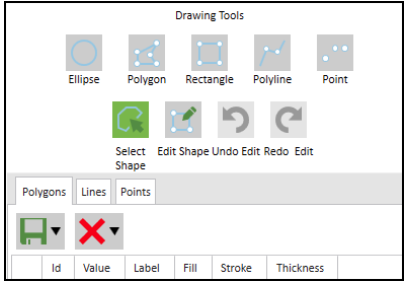
Click the shape you want to use and then follow the steps for each shape:
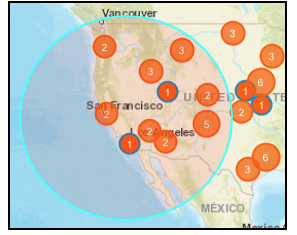
- To define an ellipse, click Ellipse and then click on the map to choose the centroid of the shape. Hold down the left mouse button and drag to draw the shape. The shape outline will be black until you release the mouse button to finalize the shape. The outline then turns to teal, indicating that the shape is in a selected state, as shown in the following screen capture.
Reset the toolbar
Click  to reset the toolbar to the default state.
This is useful when you want to clear the map of all the shapes you have
been drawing.
to reset the toolbar to the default state.
This is useful when you want to clear the map of all the shapes you have
been drawing.
Select shape tool
Use this tool to select one or more shapes. This function enables you to save or delete the selected shape or shapes. Click the icon and then select each shape on the map that you want to work with. As you select each shape, the rows in the grid reflect the polygons, lines, and points that comprise the shape. When you select an already selected shape, the shape will be deselected.
Delete shapes
To delete selected shapes, select the shape or shapes you want to delete and
then click Delete Selected Shapes in the  (Delete drawn shapes) list.
To delete all shapes, in the (Delete drawn shapes) list, select Delete All Shapes.
Usage notes
To select a shape, click it. To deselect a shape, click it again. You can select multiple shapes.