
Save shapes
You can save shapes listed on the current tab in the drawing tools grid.

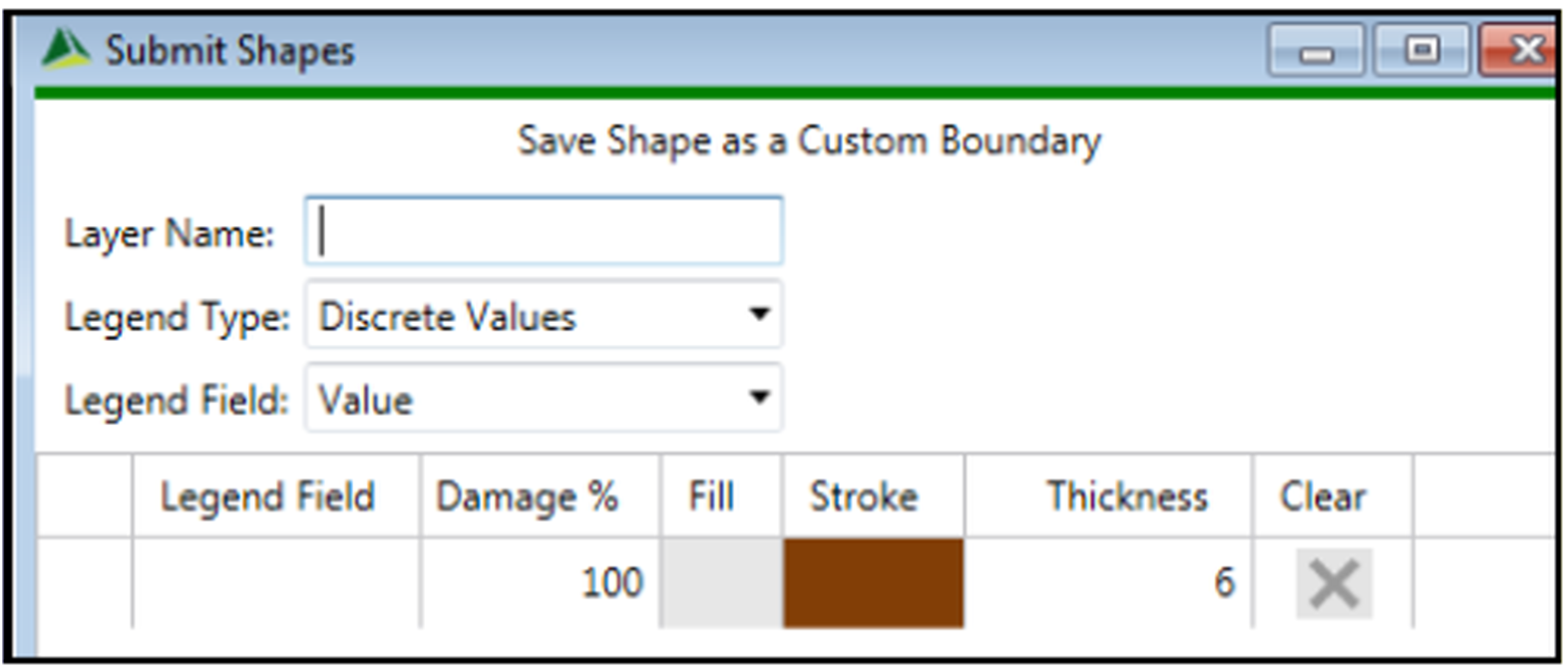
You can save a single shape or all shapes. For example, to save selected polygon shapes, on the Polygons tab, select each row containing a shape or shapes that you want to save and then click Save selected shapes in the Save drawn shapes list. The Save Shape as a Custom Boundary dialog box appears where you can specify layer name, legend type, legend field, damage %, fill, stroke, and thickness. You can also remove (Clear) a segment from the shape. When you have finished defining the shape, click Save.
To save all shapes, for example where you have created multiple points on the map, select the Points tab and then, in the Save drawn shapes list, click Save all shapes.
After you have saved shapes, Touchstone Re creates a user-drawn Shape Import and adds an activity to the Activity Monitor.