
Install and configure DBeaver
You need to install and configure DBeaver before you can use it.
Verisk Technical Support will need to give you access to the cloud where your loss data can be queried from. Contact them for assistance when you are ready to install DBeaver. They will need the following information when you contact them:
- Database server name
- Version and build of the AirResultRe database
You can obtain this information by running the following query.
Query
SELECT [ServerName],[Version], [CodeVersion] FROM [AIRResultRe].[dbo].[tDbHistory] H INNER JOIN [AIRResultRe].[dbo].[tDBVersion] V ON H.EndVersion = V.[Version] AND H.[EndCodeVersion] = V.[CodeVersion]Query output
|
ServerName |
SystemVersion |
SystemCodeVersion (build) |
|
myServer\TOUCHSTONE |
10.0.0 |
476 |
Note: mylicense ` and myserver are generic terms and will actually
show the license and server specific to the client installation.
Procedure
- Download the latest Window Installer version of the DBeaver application from https://dbeaver.io/download/ and install (unzip and run) it on the Touchstone Re workstation in C:\Program Files\DBeaver.
-
Launch Touchstone Re and select

-
In the main Portfolios pane, select Query Cloud Results from the
 drop-down.
 -
When the DBeaver main window first opens you will need to configure DBeaver for you installation
-
Click
 .
.
- In the Select Your Database dialog, connect to the Amazon Athena database.
- Click the Driver Properties tab.
- Click Download to download the Athena driver.
-
Click
-
Once the download is finished, locate TouchstoneRe/Log/airsqlaccess-data.json.
You will use the information in this file to configure for your specific installation in the following steps.
-
In the left pane, right mouse click on sql-output then select Edit
Connection
-
In the Authentication section remove any username and password.
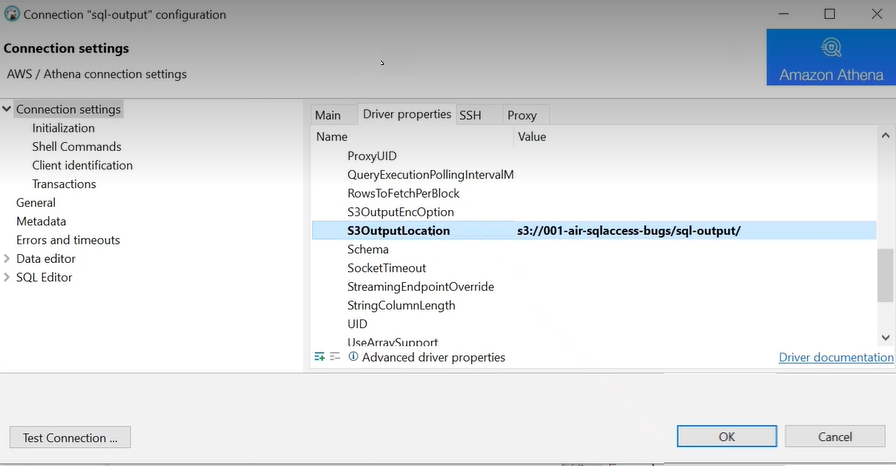
- In this same tab, set Workgroup to sqlaccess-wg-mylicense (also paste to right).
The top parameters in this tab are preset as indicated in the following image.

-
In the Authentication section remove any username and password.
- Exit DBeaver.
- You may need to run a script on the AIRResult database in DBeaver; refer to Update loss results databasefor more information.